How it works, start to finish.
Set up once, about fifteen minutes. After that, every finished job becomes a local page on Google. No writing, no web guy.
A tech taps four fields. Before the truck leaves the driveway, a page for that service, in that city, is live, with a matching post on your Google Business Profile.
Part one · set up once, fifteen minutes
Open Brand. Everything here is stamped onto every page we build.
- Logo tops every page.
- Phone and email sit in a tap-to-call contact bar.
- Address must match your Google Business Profile exactly.
- Colors update in the live preview.
Service Types is the menu techs tap in the field. Use the words customers use: "AC Repair," not "Refrigerant Recovery."
Add each tech by email under Team. They set their own password.
- Technician submits jobs. That's it.
- Admin gets everything except billing.
- Owner gets everything.
Under Integrations, connect the Google account that manages your listing. Every job then posts to your profile, linking the new page.
Optional, but it's the difference between Google finding the page eventually and seeing it today.
Part two · the daily routine
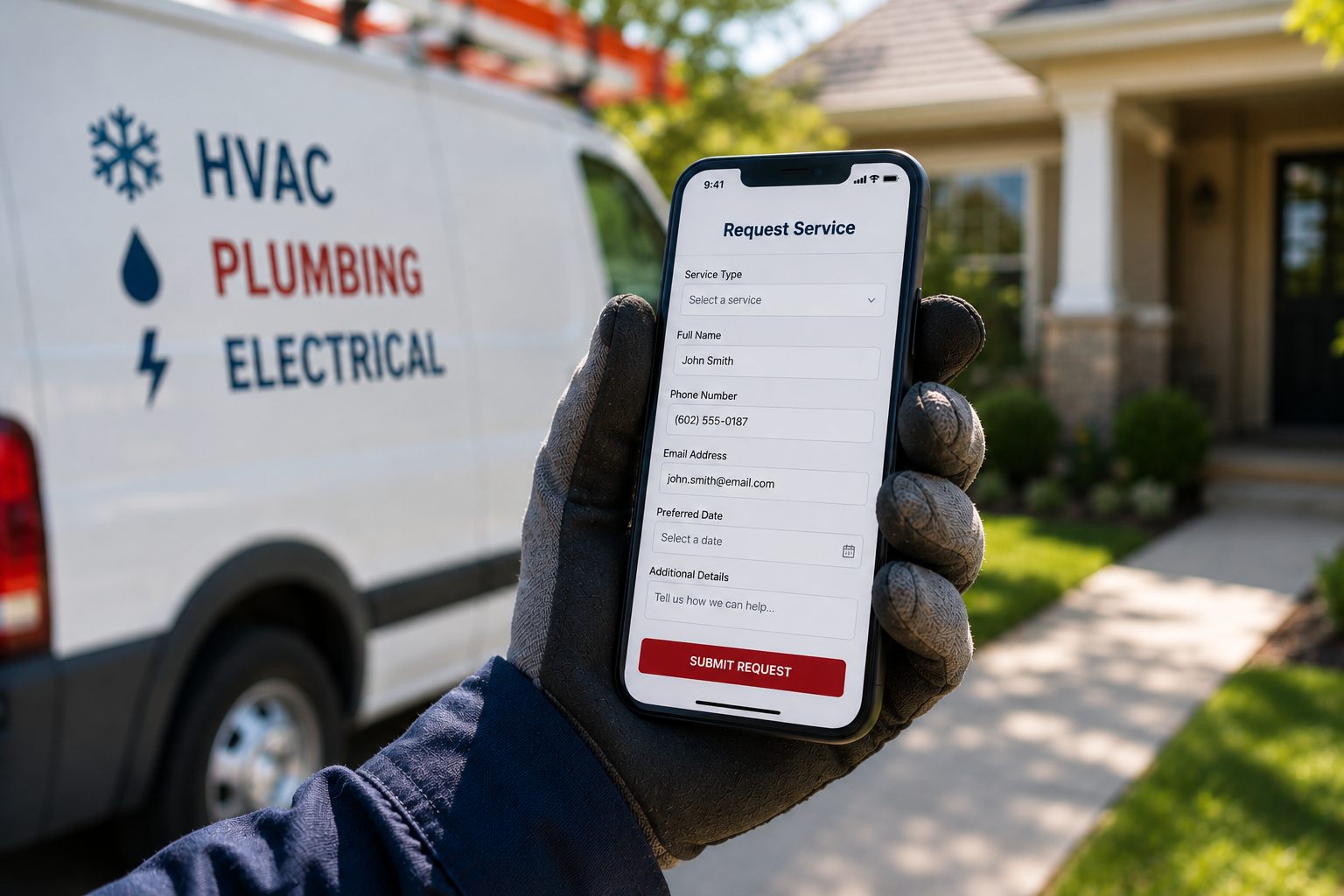
Techs open /capture.html on their phone, or save it to the home screen. Pick the service, type a sentence, add photos, tap Submit. GPS does the rest.
Within a minute, the system:
- Turns GPS into a street address and city.
- Writes the headline, description, FAQs, and structured data.
- Publishes with your logo, colors, and photos.
- Updates your sitemap.
- Posts to Google, if connected.
Watch progress under Jobs. SEO Pages lists everything published, with view counts.
Every page carries a quote form. Fill-ins email you instantly and land under Leads, tagged by page. Move each through New, Contacted, Converted, or Lost.
Starter pages live on our domain. Growth and Pro serve them from yours, so the authority is yours.
Open Custom Domain, enter a subdomain like jobs.yourbusiness.com, add the DNS record it shows you, and click verify.
Quick reference
| I want to… | Go to | Who can |
|---|---|---|
| Change my logo, colors, address, or phone | Brand | Owner / Admin |
| Add or rename the services my crew picks from | Service Types | Owner / Admin |
| Add a tech or resend an invite | Team | Owner / Admin |
| Connect or change Google Business Profile | Integrations | Owner / Admin |
| See whether a job finished, or retry a failed one | Jobs | Anyone signed in |
| Find a published page and its view count | SEO Pages | Anyone signed in |
| Follow up on inquiries and set their status | Leads | Owner / Admin |
| Serve pages from my own domain | Custom Domain | Owner (Growth / Pro) |
| Change plan, card, or cancel | Billing | Owner |
| Submit a job from a truck | /capture.html | Technicians |
| What you see | What it usually means |
|---|---|
| A job sits on pending for more than a few minutes | The processor runs on a schedule and retries on its own. If it stays stuck, use Retry on the job row. |
| A job says failed | Usually a missing location. Retry the job; if it fails again, contact support. |
| The page shows the wrong city | GPS placed the tech elsewhere, common in large buildings. Delete the job and resubmit on site. |
| A tech can't sign in | Their invite likely expired. Send a new one from Team. |
| No Google post appeared | Check Integrations; the connection may need re-authorizing, and a location must be selected. |
| Pages don't show your branding | Save anything in Brand. That rebuilds every published page with your current logo and colors. |
Four fields. One thumb. Sixty seconds.
This is the entire job for your technician: pick the service, type a sentence, add a photo or two, tap Submit. Gloves on. Truck running.
- GPS fills in the city automatically
- Rough notes are fine — the page writes itself
- Live before the next job starts
Before you ask.
What does a technician need to submit a job?
A phone with location access and their invite link. They sign in once at the field app, and from then on it's four fields, a couple of photos, and Submit.
Is Google Business Profile required?
No. Pages publish either way. Connecting it adds an automatic post to your profile for every finished job, which helps Google find each new page the same day.
What if a page shows the wrong city?
The city comes from the phone's GPS at submission, which can drift inside large buildings. Delete the job from the dashboard and resubmit on site, and the page rebuilds with the correct location.
Can I change how the pages look after publishing?
Yes. Change your logo, colors, address, or contact details under Brand and every published page rebuilds with the new look immediately.
See what this looks like in your trade, or read the full FAQ.
Plant your first sign today.
Set up your brand, invite one tech, send them to one job.
Get Started